PowerShell - Teams Planner Task Report
Wenn eine Teams Gruppe mehrere Planner hat, kann ein CSV Report schnell eine Übersicht verschaffen. So geht's mit PowerShell und Microsoft Graph.
PowerShell - Teams Planner Task Report
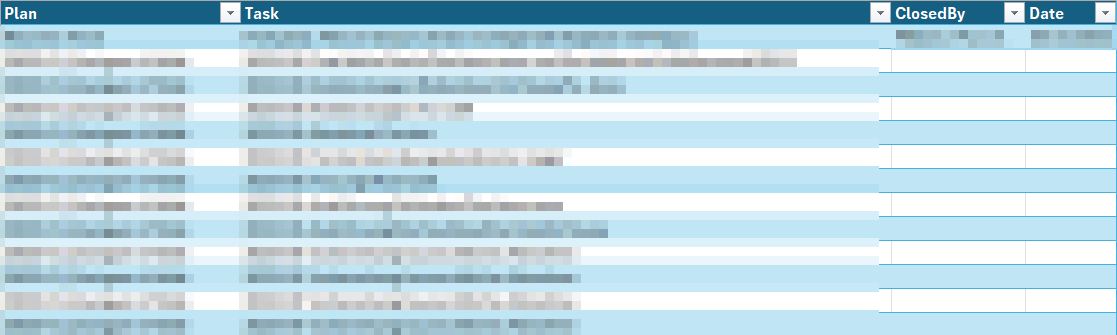
Wenn eine Teams Gruppe mehrere Planner in unterschiedlichen Kanälen hat, kann ein CSV Report schnell eine Übersicht verschaffen. Ihr könnt die Daten an anderen Stellen weiterverarbeiten, oder einfach nur eine Auswertung für das nächste Jourfix erstellen.
Voraussetzungen
- Admin Rechte zum Erstellen einer Azure Anwendung
- Azure Anwendung
- Group ID der Teams Gruppe
Azure Anwendung erstellen
Im Azure Portal unter https://portal.azure.com/#view/Microsoft_AAD_RegisteredApps/ApplicationsListBlade könnt Ihr Euch eine entsprechende Anwendung erstellen.
Erforderliche API Berechtigungen für Microsoft Graph (Anwendung):
Group.Read.AllTasks.Read.All
Erstellt Euch dann noch ein Key, den Ihr später in das PS Skript einfügt.
Group ID ermitteln
Unter https://portal.azure.com/#view/Microsoft_AAD_IAM/GroupsManagementMenuBlade/~/AllGroups könnt Ihr nach dem gewünschten Team suchen, die ID steht im Attribut “Objekt-ID”.
Skript anpassen und ausführen
# Variables
$TenatDomainName = "" # Tenant Name eingeben / onmicrosoft Domain
$ApplicationID = "" # AppId der Azure Anwendung
$AccessSecret = "" # Key, den Ihr vorab erstellt habt
$GroupId = "" # Object-ID der Teams Gruppe
$csvfile = "$env:TEMP\Report-ClosedTasks.csv"
$results = @()
$URL = "https://graph.microsoft.com/v1.0/groups/$GroupId/planner/plans"

$Body = @{
    Grant_Type    = "client_credentials"
    Scope         = "https://graph.microsoft.com/.default"
    client_Id     = $ApplicationID
    Client_Secret = $AccessSecret
}

# Connect
$ConnectGraph = Invoke-RestMethod `
    -Uri "https://login.microsoftonline.com/$TenatDomainName/oauth2/v2.0/token" `
    -Method POST -Body $Body
$token = $ConnectGraph.access_token

# Get All Plans
$Plans = (Invoke-RestMethod `
    -Headers @{
        Authorization = "Bearer $($token)"
        "content-type" = "application/json"
        "charset" = "utf-8"
    } `
    -Uri $URL -Method Get).value

foreach ($plan in $plans) {
    $user = $null
    $completeDate = $null
    $PlanId = $plan.id
    $TaskURL = "https://graph.microsoft.com/v1.0/groups/$GroupId/planner/plans/$PlanId/Tasks"

    $Tasks = (Invoke-RestMethod `
        -Headers @{
            Authorization = "Bearer $($token)"
            "content-type" = "application/json"
            "charset" = "utf-8"
        } `
        -Uri $TaskURL -Method Get).value

    foreach ($task in $tasks) {
        $user = $null
        $completeDate = $null

        if ($task.completedBy.user.id -ne $null) {
            $UserId = $task.completedBy.user.id
            $UserURL = "https://graph.microsoft.com/v1.0/users/$UserId"
            $User = Invoke-RestMethod `
                -Headers @{
                    Authorization = "Bearer $($token)"
                    "content-type" = "application/json"
                    "charset" = "utf-8"
                } `
                -Uri $UserURL -Method Get
        }

        if ($task.completedDateTime -ne $null) {
            $completeDate = Get-Date $task.completedDateTime -Format "dd.MM.yyyy"
        }

        $obj = [PSCustomObject]@{
            Plan     = $plan.title
            Task     = $task.title
            ClosedBy = $User.displayName
            Date     = $completeDate
        }
        $results += $obj
    }
}

# Export Result to CSV
$results | Export-Csv -Path $csvfile -Delimiter ";" -Encoding UTF8 -NoTypeInformation
Die CSV Datei könnt Ihr dann in Excel öffnen und weiterverarbeiten.
Lieber Gruß Micha